When uploading products from Shopify to eBay, selecting the appropriate category and accurately filling out Item Specifics in the Create Profiles section is essential. This helps improve your product visibility, ensures compliance with eBay requirements, and increases the chances of successful listings.
This guide will show you how to use eBay as a reference to find the correct information.
Step 1: Search for a Similar Item on eBay
Go to eBay.com and search for a product that is identical or very similar to the one you are syncing from Shopify.
- Example: Search for “Mechanical Wireless Gaming Keyboard”.
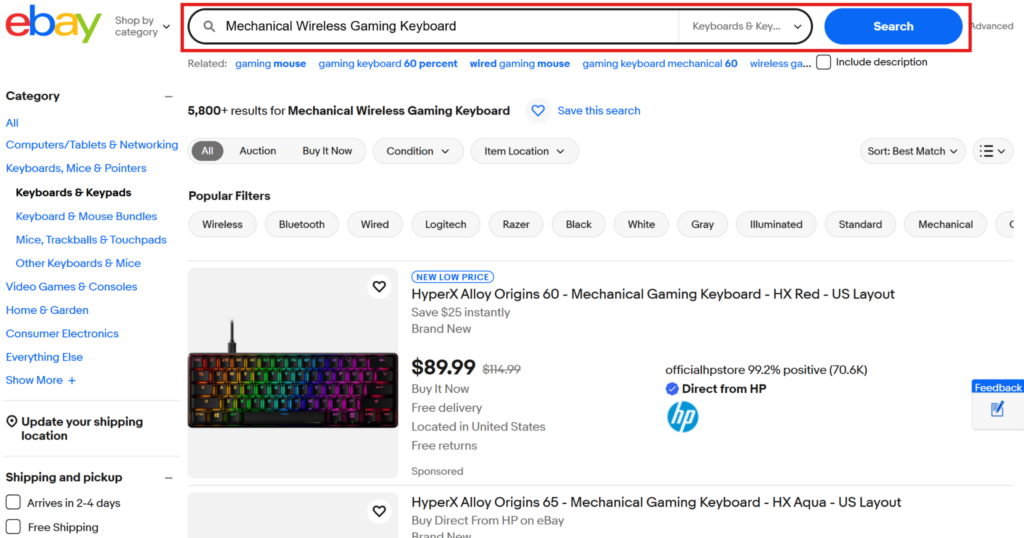
Step 2: Locate the “About this item” Section
Click on one of the top-ranking listings (preferably a “New” item from a high-volume seller). Scroll down past the images until you see the “About this item” section.
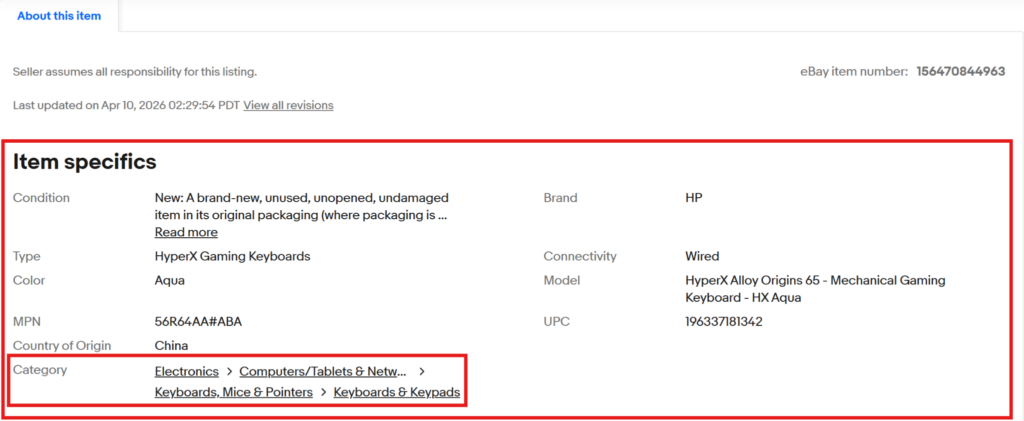
Step 3: Identify the Item Specifics
In this section, eBay displays a table of attributes like Category, Brand, Type, Color, Connectivity, and Features.
- These are the exact fields eBay buyers use to filter search results.
- Note which fields are listed; these are the ones you should prioritize filling out in the Create Profiles section of our app.
Step 4: Apply the Information in Create Profiles
Now, return to our app and go to the Create Profiles section:
- Select Category: Use the category path you found on eBay to fill out the appropriate category.
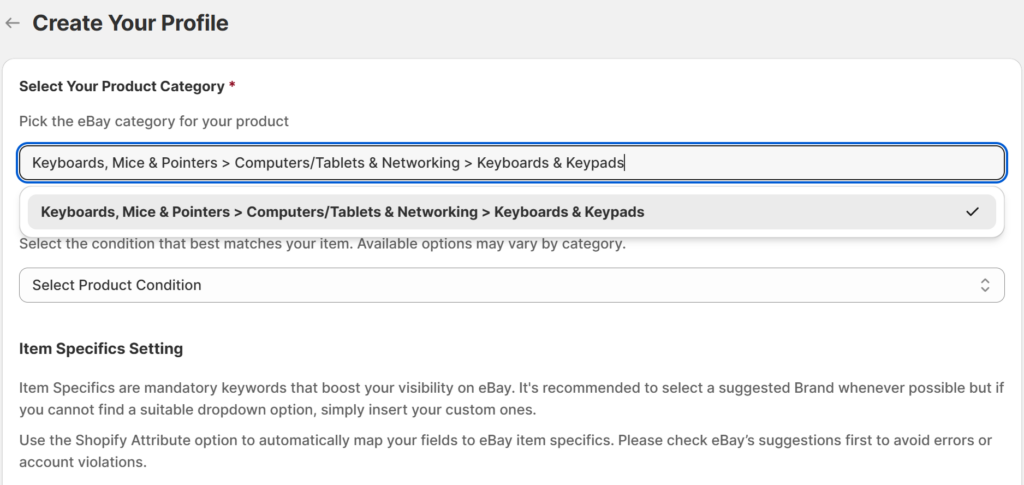
- Fill Item Specifics: Look at the “About this item” table you found earlier. Match those values (like Brand and Type) into the corresponding fields.
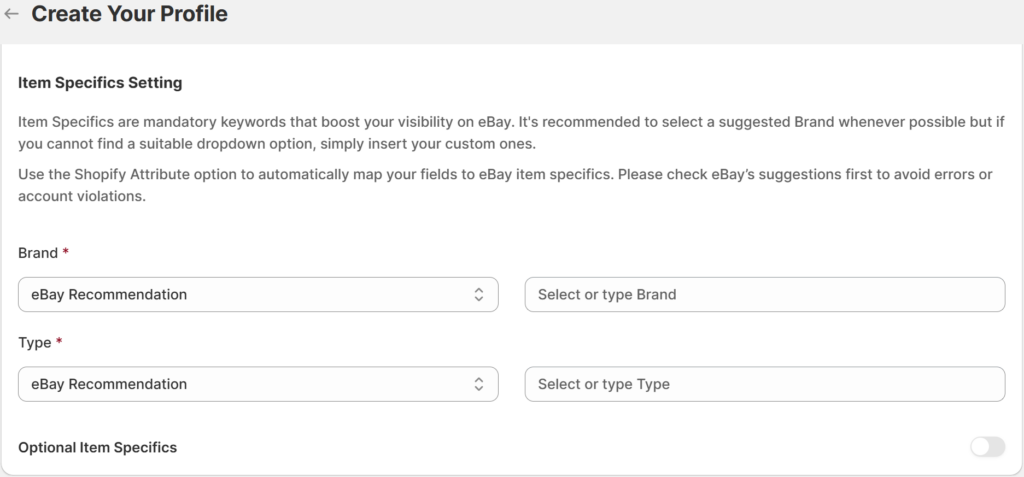
- Use Recommended Values: Where available, select values from the eBay recommended list provided to boost your search visibility.
eBay uses these specifics to rank your product in search results. By mimicking a top-selling listing’s category and specifics, you increase the chances of your Shopify products being seen and sold on eBay.